Obsidian Aliyun OSS Sync Configuration Guide
Simply put, use Aliyun's object storage to sync Obsidian notes across multiple devices
I encountered a problem when using Obsidian: how to sync notes between my phone and computer? The official sync service requires a subscription, and OneDrive is not very stable in China. Later, I found that Aliyun’s OSS object storage can solve this problem with low cost and decent speed.
What is OSS
OSS (Object Storage Service) is an object storage service provided by Aliyun. Simply put, it’s a cloud-based file storage space. You can upload files to OSS and access them from anywhere. For Obsidian sync, it acts like a relay station where both your phone and computer read and write notes.
Configuration Steps
Step 1: Purchase OSS Storage
First, log in to the Aliyun official website, find OSS object storage, and select the following specifications when purchasing:

After purchase, you’ll be redirected to the console. If it’s your first time using it, it will show “Not Activated”. Click “Activate Now”:
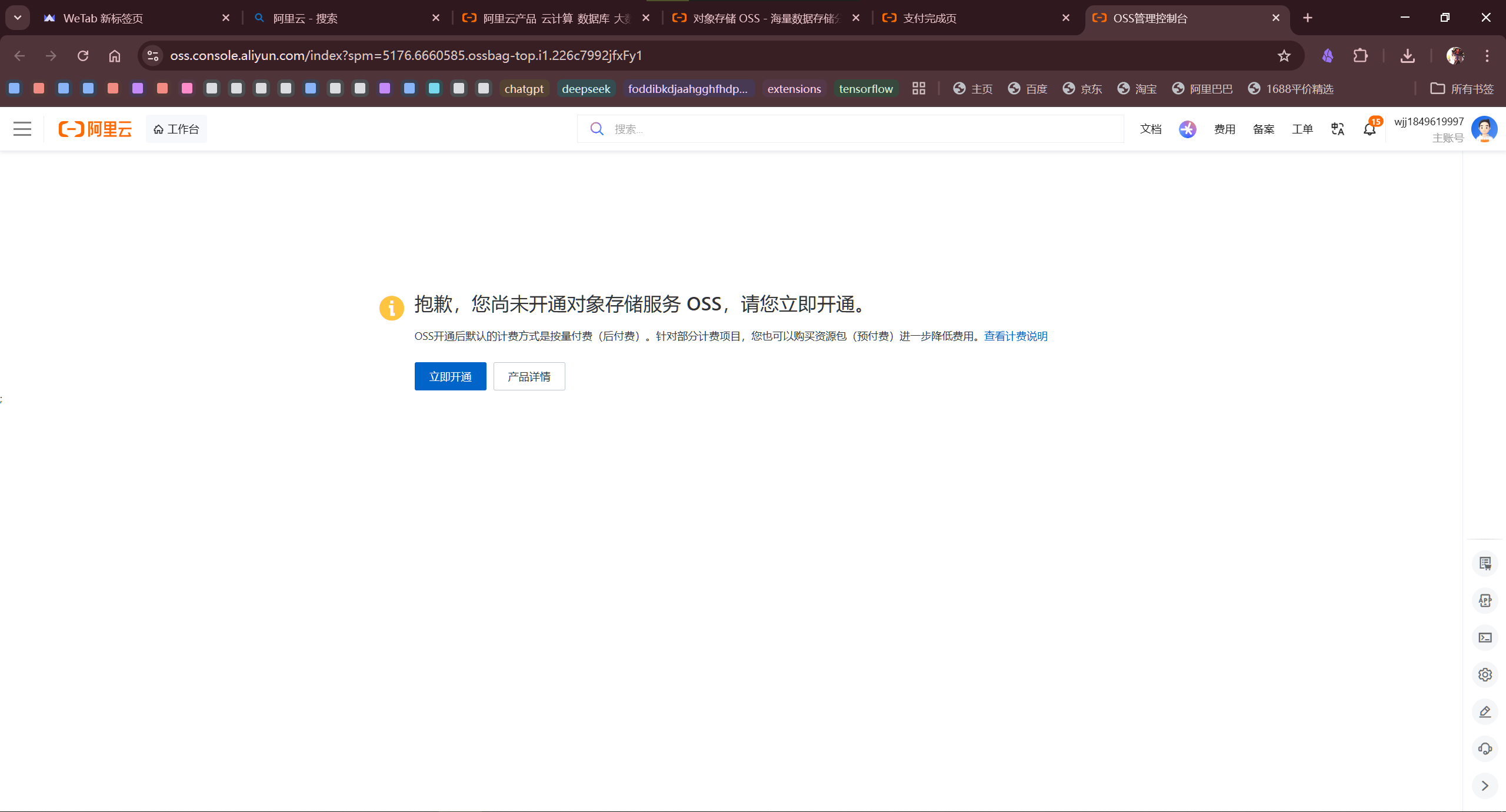
Since both uploading and downloading require traffic, it’s recommended to add some balance to your account. However, the cost is really low, probably less than 0.1 yuan per month.
Step 2: Create Access User
Click “Access Control” in your account information:

Create a new user:
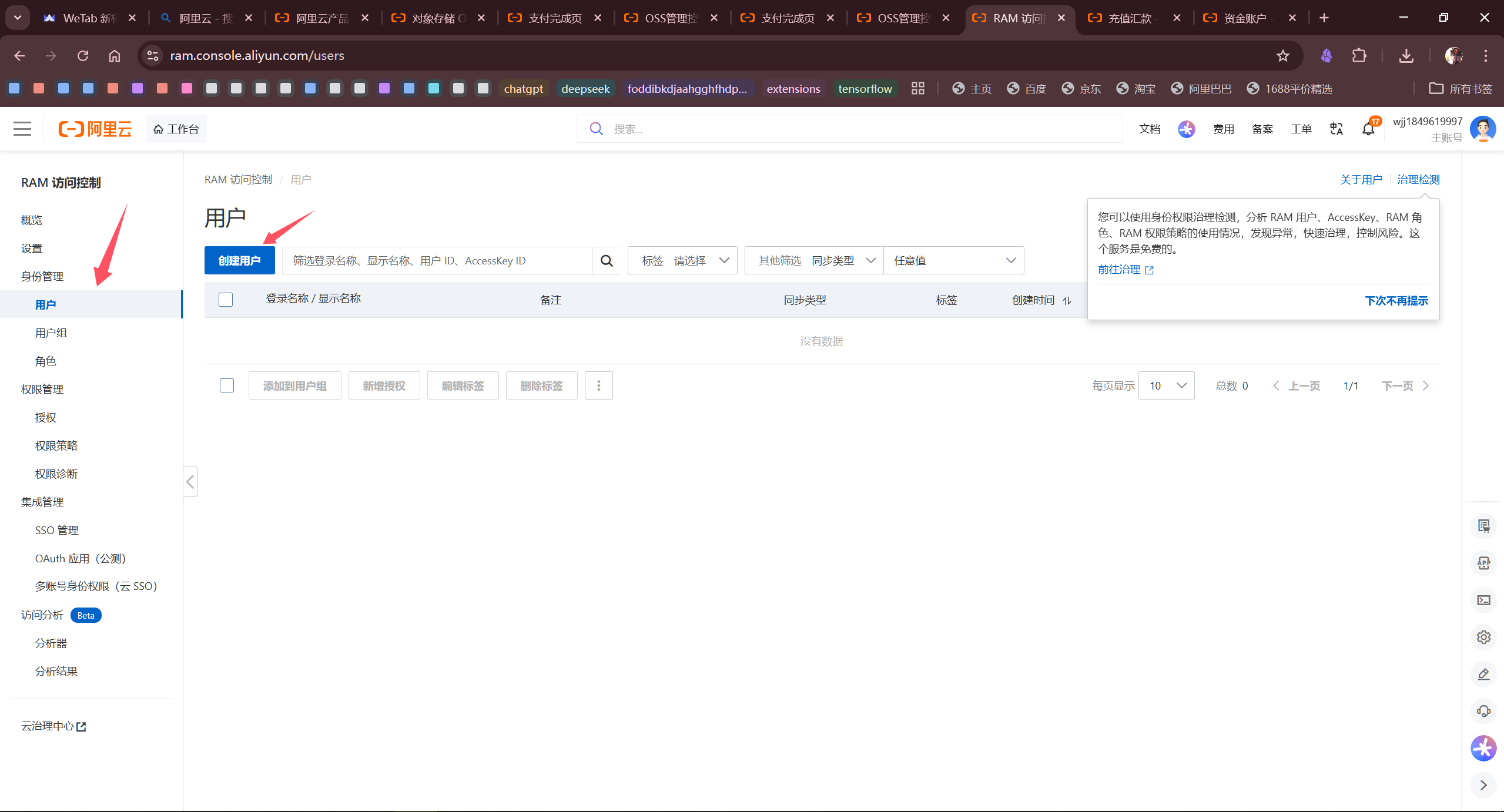
Configure as follows:
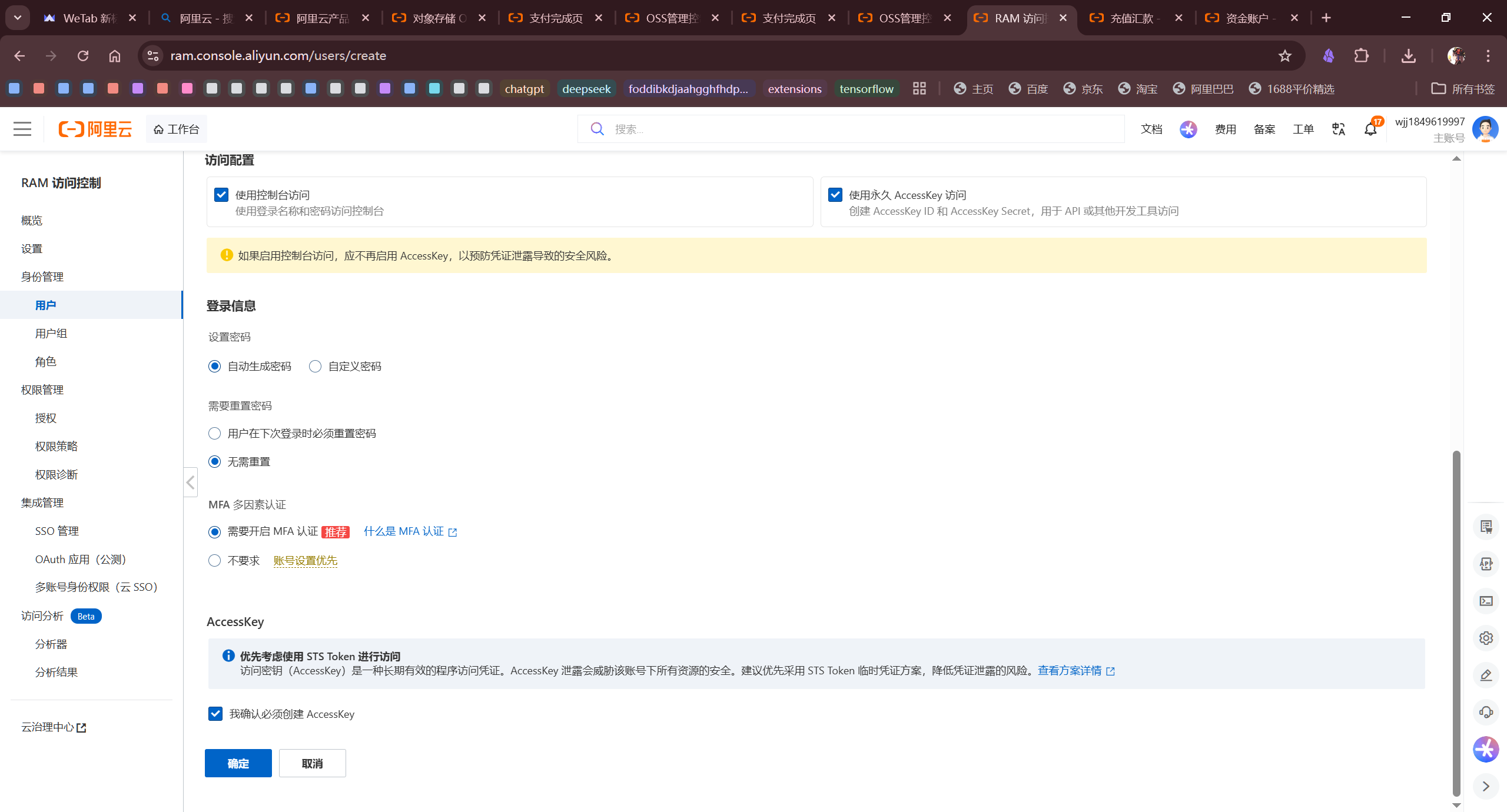
After successful creation, make sure to save the AccessKey ID and AccessKey Secret. You won’t be able to view them again after closing the page. These two keys will be needed when configuring the plugin later.
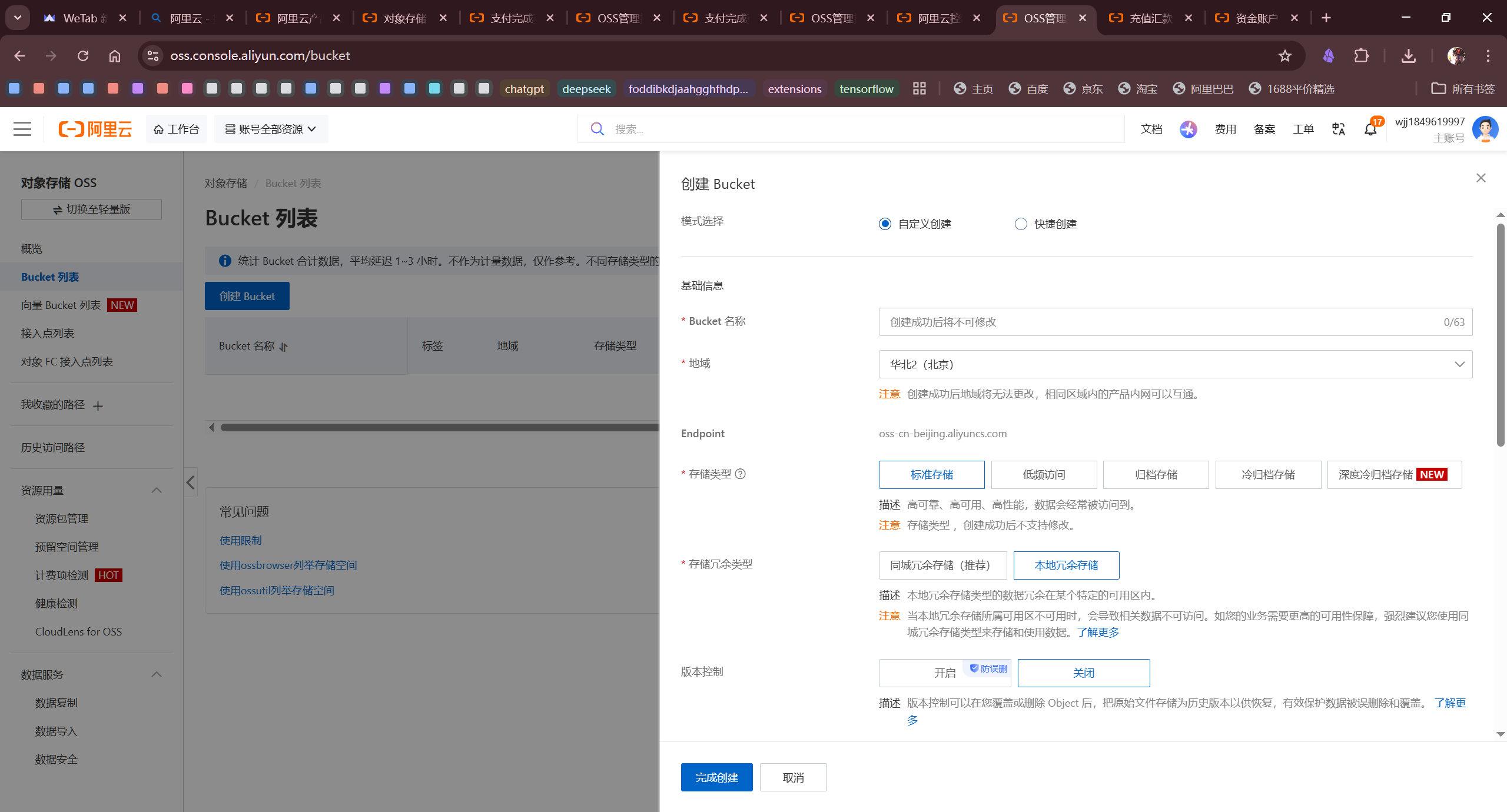
Step 3: Create Bucket
In the console, click “OSS Object Storage”, then “Bucket List”, and create a new Bucket:
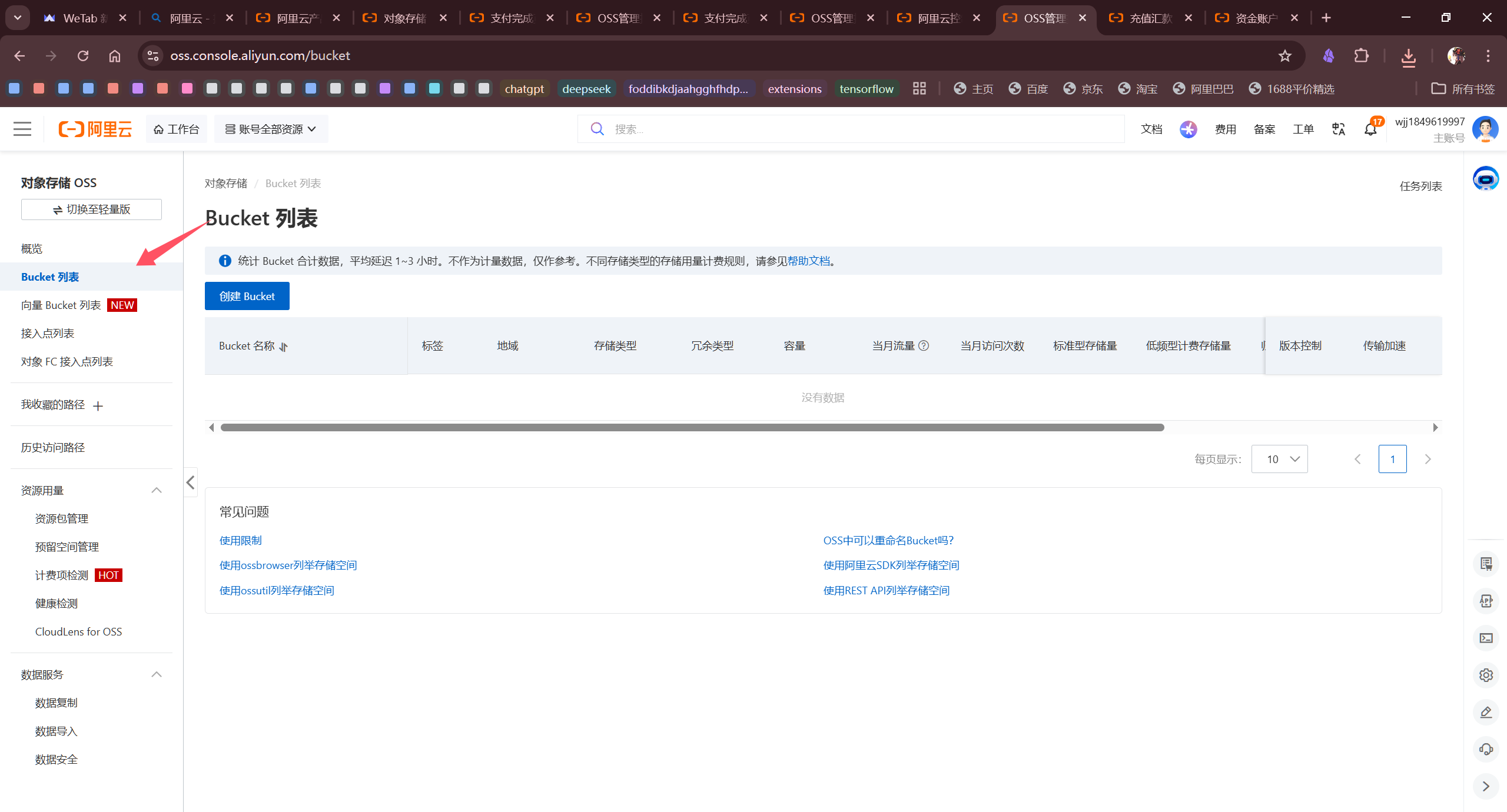
Configure as follows:
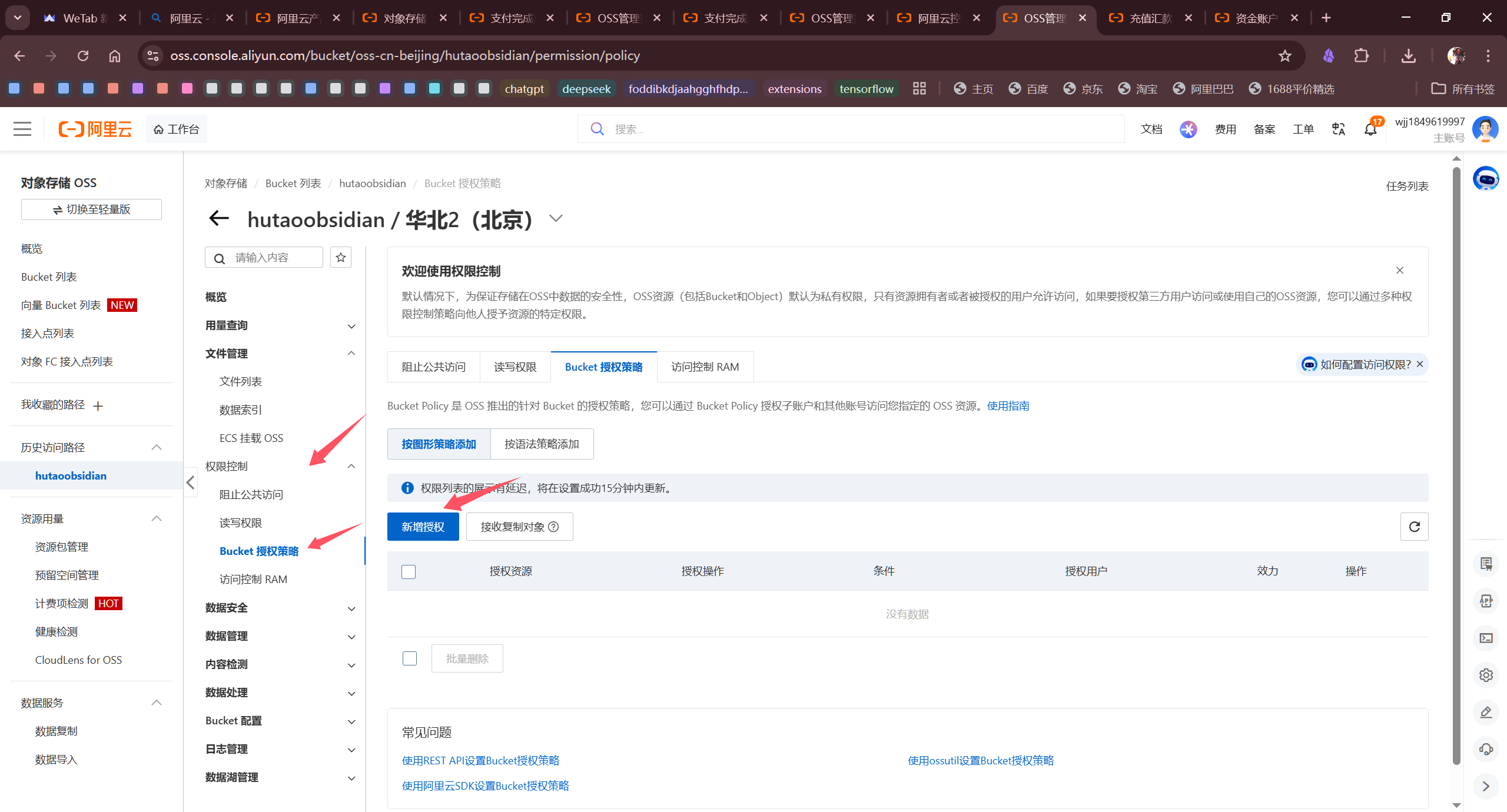
Step 4: Set Access Permissions
In the Bucket settings, grant the user you just created “Full Access” permission:
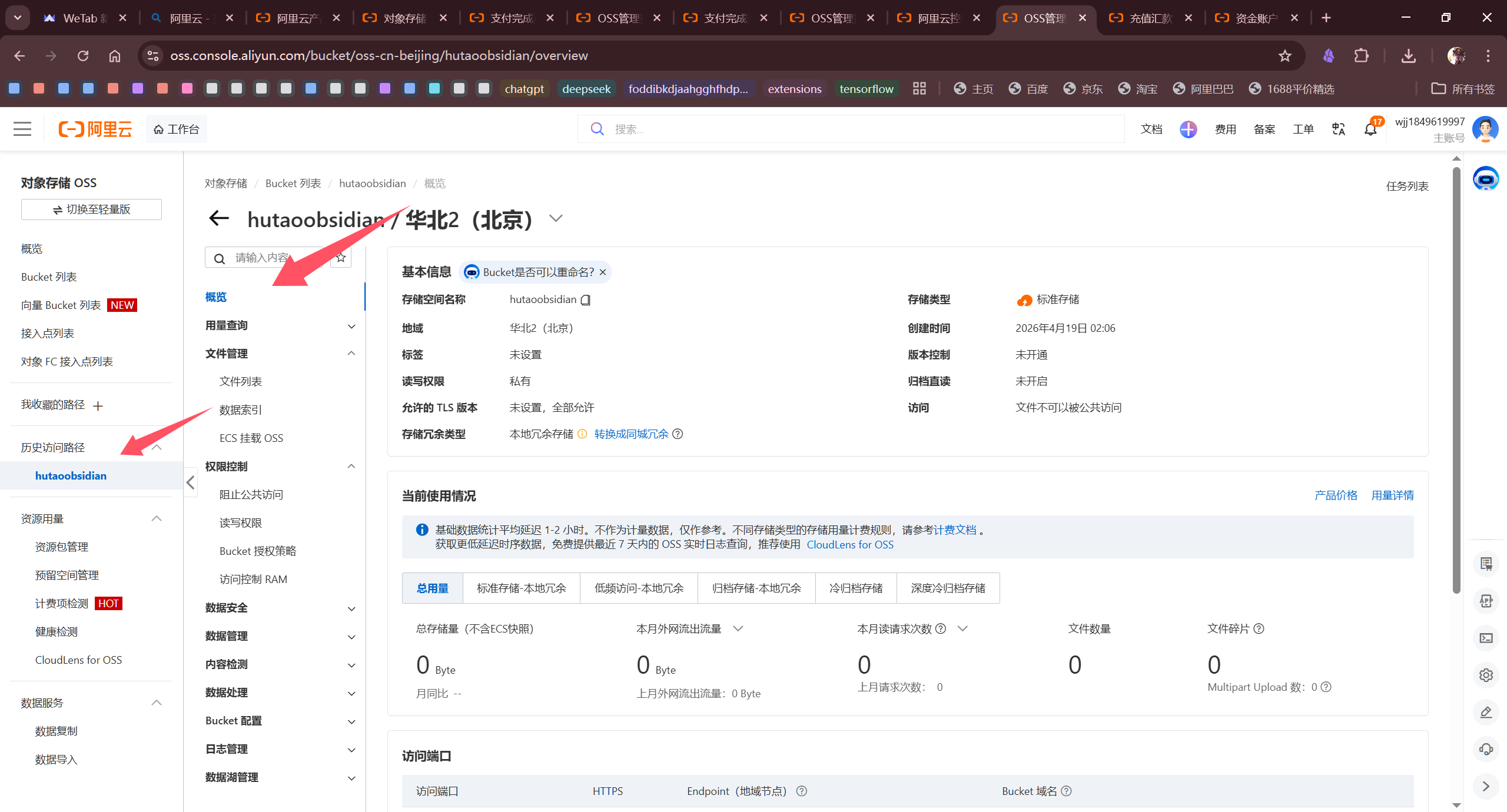
Then open the overview page and note down the Bucket’s Endpoint address, which will be needed for plugin configuration:
Step 5: Install Obsidian Plugin
Search for and install the “Remotely Save” plugin in Obsidian:
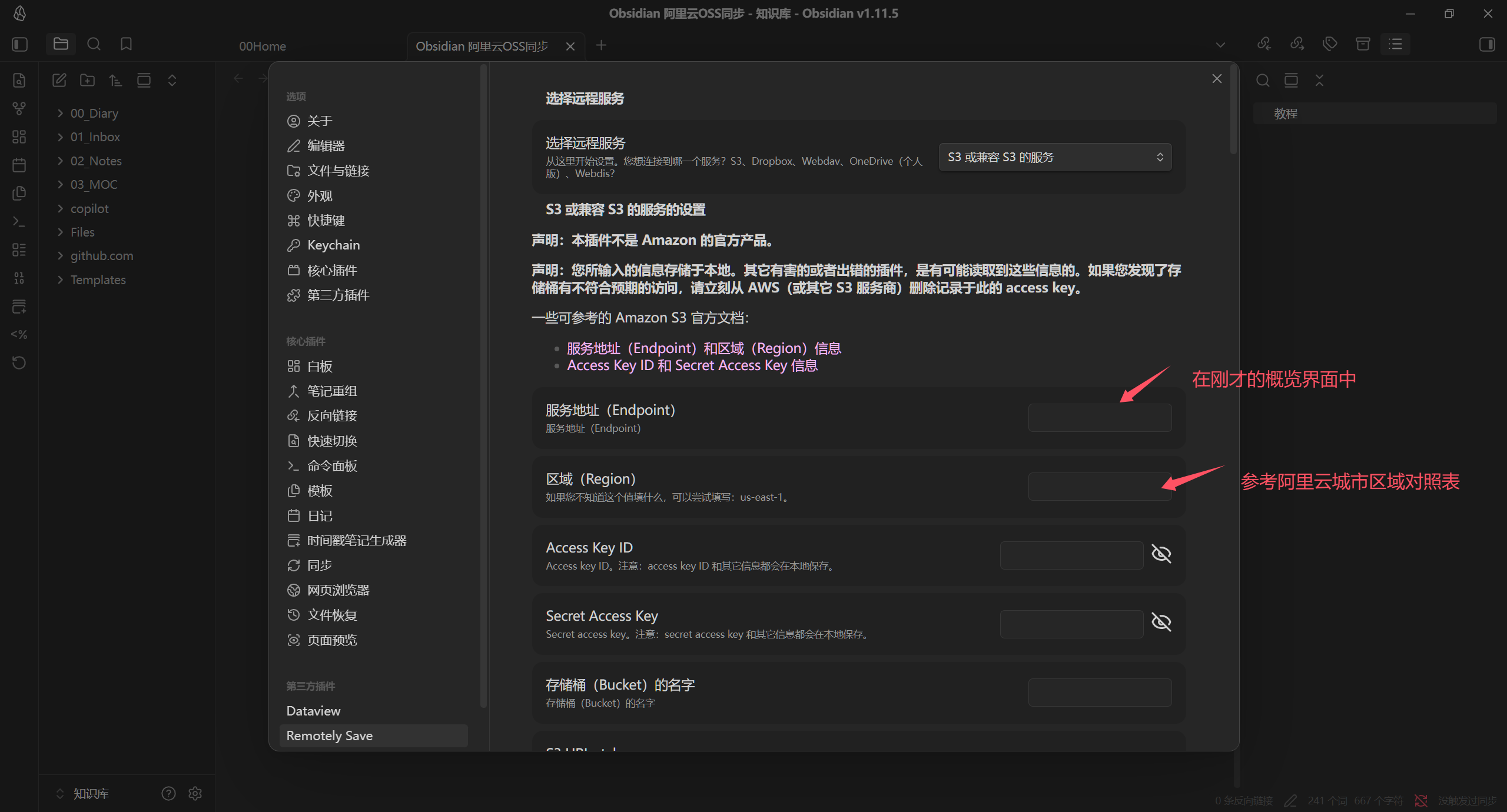
Step 6: Configure Plugin
Fill in the following information in the plugin settings:
- Remote Type: Select S3 or S3 Compatible
- Endpoint: Fill in the Bucket’s Endpoint address
- Region: Fill in the Bucket’s region (e.g., oss-cn-hangzhou)
- AccessKey ID: Fill in the previously saved AccessKey ID
- AccessKey Secret: Fill in the previously saved AccessKey Secret
- Bucket Name: Fill in the Bucket name
After configuration, click “Check” to test the connection. If it shows success, you can start syncing.
Step 7: Mobile Configuration
Create a new Obsidian vault on your mobile device, install the “Remotely Save” plugin, fill in the same configuration information, and you can achieve multi-device sync.
My Experience
I’ve been using it for a while and it works pretty well:
- Much faster than OneDrive, basically instant sync
- Very low cost, probably less than 0.1 yuan per month
- Configuration is a bit complex, but very convenient once set up
The only downside is that you need to manually click sync, unlike the official sync which is automatic. However, you can set an auto-sync interval, which basically meets the needs.
Summary
Simply put, using Aliyun OSS to sync Obsidian is a cost-effective solution. If you don’t want to pay for official sync and find OneDrive unstable, you can try this method.
References:
- Aliyun OSS Official Documentation - OSS product introduction and usage guide
- Remotely Save Plugin - Obsidian sync plugin